Space Management
This guide explains how to use the Space Management feature in the Loft App. This feature allows you to edit or remove existing spaces within your app setup.
Watch The Video Tutorial
Steps to Use Space Management
-
Open the Loft App
-
Go to Settings Section
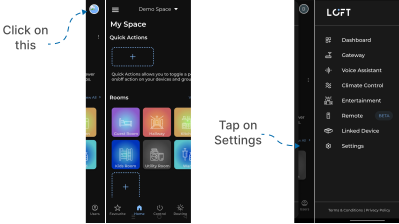
- Tap the side menu (hamburger icon) at the top-left corner.
- Click on Settings option.
-
Access Space Management
- Tap on Space Management.
- A List of Available Spaces will appear on the screen.
-
Manage a Space
- Find the space you want to manage.
- Tap on the three dots (
⁝) icon located on the right side of that space.
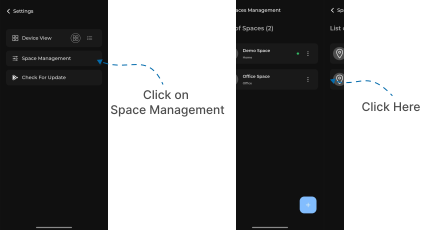
- A Settings Menu popup will appear with two options: Edit Space and Remove Space.
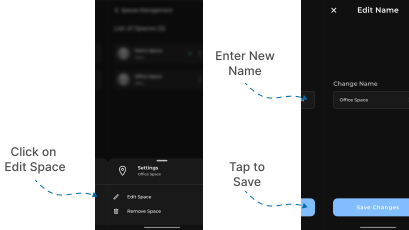
- Edit Space
- Select Edit Space.
- Enter the new name for the space in the input field.
- Tap Save Changes.
- Your space name will be successfully updated.
- Remove Space
- Select Remove Space.
- A confirmation popup will appear asking you to confirm deletion.
- Tap Delete to permanently remove the selected space.
- ⚠️ Note: If there is only one space available, it cannot be deleted.

-
Create New Space
You can also create a new space in the Loft App by following the steps below:
- Tap on the ‘+’ (Add) button at the bottom of the screen.
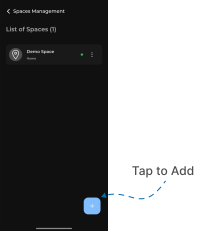
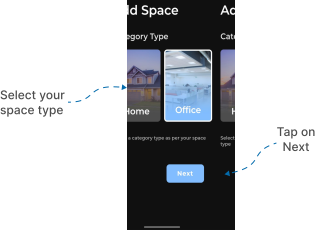
- You will be redirected to the Space Selection screen, where you can choose between:
- Home
- Office
Select an option based on your preference(Here we go with Office) and tap Next.
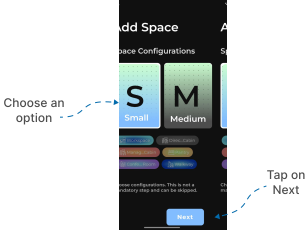
- The Space Configuration screen will appear. Choose configuration options as per your preference and click Next.
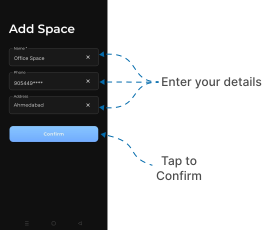
- You’ll now see the Basic Details Form. Fill in the following details:
- Name
- Phone Number
- Address
- Tap the Confirm button to complete the setup.
- Your new space will be successfully added, and you’ll be redirected to the Home Page of the application.